Claude account
The Claude account panel in CLACOROO’s Settings is where you connect your claude.ai subscription to Claude Code (and so to CLACOROO). Once connected, the Dashboard’s Claude quote bars come alive, your weekly and session quotas are visible, and CLACOROO can show you when you’re getting close to a limit.
You can also use an Anthropic API key as an alternative — see API key.
Overview
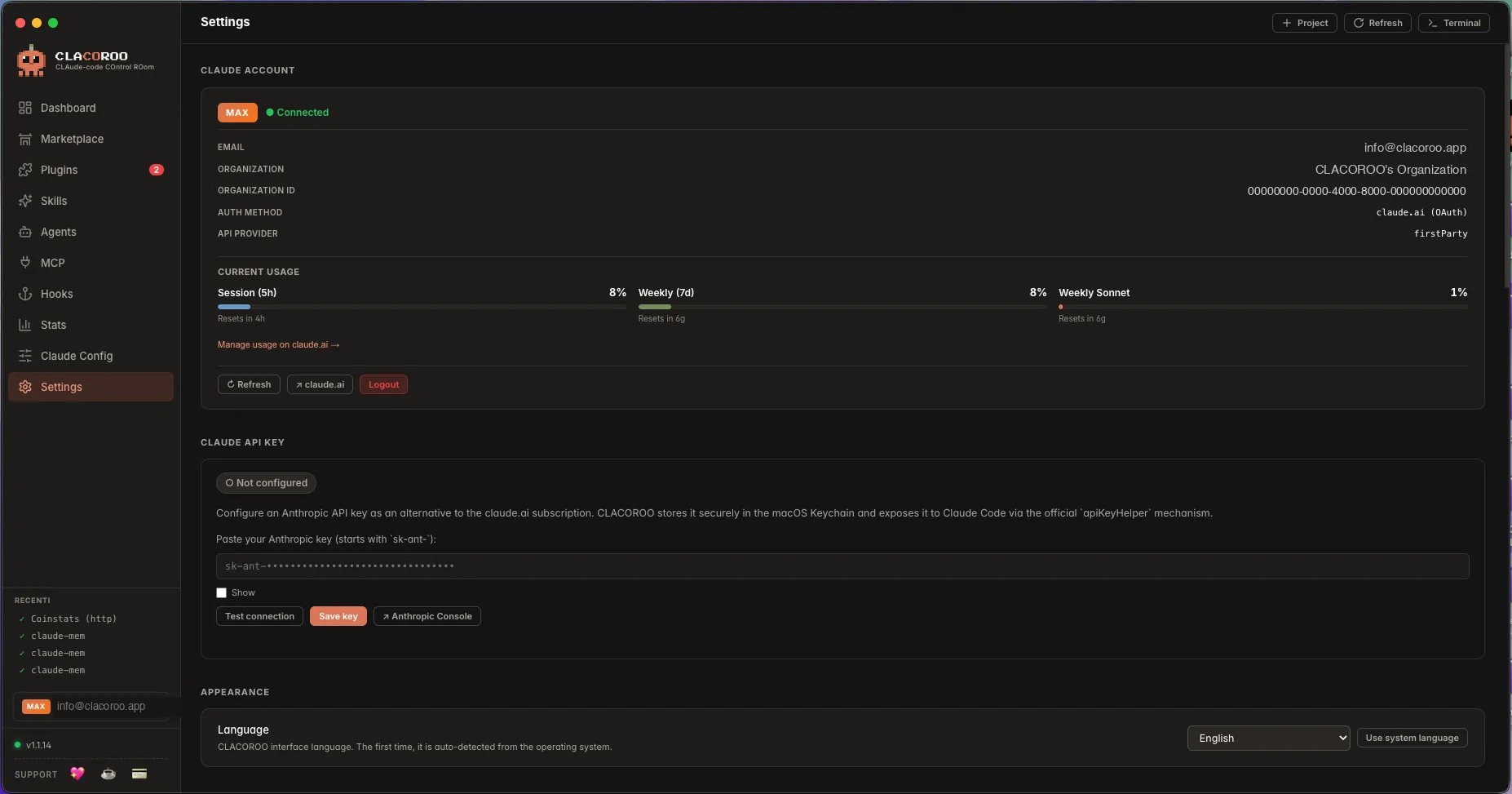
The panel shows everything Claude Code’s CLI tells us about your account:
- A plan badge (Max, Pro, free)
- Your email and organisation
- The authentication method (claude.ai OAuth, or API key)
- Current usage — Session, Weekly, Weekly Sonnet quotas as live bars
- A Refresh button to re-query the state
- A Logout button when you’re signed in
When you’re not signed in, the panel shows a single Login to claude.ai button instead.
What it shows
Plan badge
- MAX — claude.ai Max subscription, highest quota tier
- Pro — claude.ai Pro subscription, mid tier
- Free — claude.ai free tier (heavily limited)
- API — you authenticated with an API key, not a subscription
Usage bars
Three bars, identical to the ones on the Dashboard but always present in Settings:
- Session (5h) — a short rolling window; resets in minutes
- Weekly (7d) — your weekly cap
- Weekly Sonnet — model-specific cap for Sonnet
Each bar shows the percentage used and a “resets in” countdown.
Connection status dot
A small green / amber / red dot next to the plan badge tells you whether the account is fully connected (green), partially (amber, e.g. “logged in but quota unknown”) or disconnected (red / sign-in needed).
Common tasks
How to sign in to claude.ai
- Open Settings in CLACOROO (sidebar bottom or
Cmd/Ctrl + ,) - Find the Claude account panel at the top
- Click Login to claude.ai
- CLACOROO opens the built-in terminal with
claude loginalready typed - Follow the prompts — usually a URL opens in your default browser, you sign in, and Claude Code finishes the handshake automatically
- Back in CLACOROO, the account panel updates with your email and quotas
How to log out
- In the Claude account panel, click Logout
- CLACOROO runs
claude logoutin the terminal - The panel returns to the “Login to claude.ai” state
Logging out does not delete your API key configuration (if any) — it only clears the claude.ai session.
How to refresh the usage numbers
The panel polls Claude Code at a reasonable cadence. If you want the latest right now:
- Click Refresh in the panel, or
- Press
Cmd / Ctrl + Rfrom anywhere in the app
The numbers can also update when Claude Code itself reports a fresh value — CLACOROO follows along automatically.
How to switch to an API key instead
If you’d rather use the pay-as-you-go API instead of a subscription:
- Add an Anthropic API key — see API key
- Optionally log out of claude.ai (you can keep both; CLACOROO indicates which is active)
Tips & shortcuts
- The panel works with whichever authentication Claude Code is configured for: if it’s set up for API, you’ll see the API badge instead of Pro/Max
- Refresh is cheap: it asks Claude Code for the cached state, not the cloud — safe to click whenever
- The Dashboard’s Claude quote bars are powered by exactly this data; if the panel shows numbers, the Dashboard does too
- A logout + login is the simplest way to fix a stuck “Needs auth” state on an MCP server that goes through your account
Edge cases & errors
- The login button does nothing. CLACOROO can’t find
claudein yourPATH. See Troubleshooting. - I’m signed in but the quotas show
—. Claude Code hasn’t received a quota response yet. Send a message in a Claude Code session, then click Refresh. - The plan badge says “Free” but I have Pro. You’re signed into a different claude.ai account than the one with Pro. Log out and log in to the right one.
- macOS: the browser opened but the login never completes. Some browsers block the callback URL. Sign in from the same Mac with your default browser; if that fails too, use the terminal interactively (
claude loginin the built-in terminal) and follow the device-code flow.
Related
- API key — the alternative to the subscription login
- Quota notifications — get a system notification when usage crosses 80% / 95% / 100%
- Dashboard — same quota bars, in the home page
- Built-in terminal — where the login flow runs