Built-in terminal
CLACOROO includes a real terminal as a drawer at the bottom of the app. It’s a full PTY (powered by node-pty and rendered by xterm.js), so it behaves exactly like your system shell — colors, cursor, signals, multi-line commands, all of it. You can keep multiple tabs open at once.
This is where CLACOROO opens claude login, claude mcp authenticate <name> and similar interactive flows. It’s also the place you’d reach for when you want to run a one-off claude command CLACOROO doesn’t wrap (rare), or check something quickly without leaving the app.
Overview
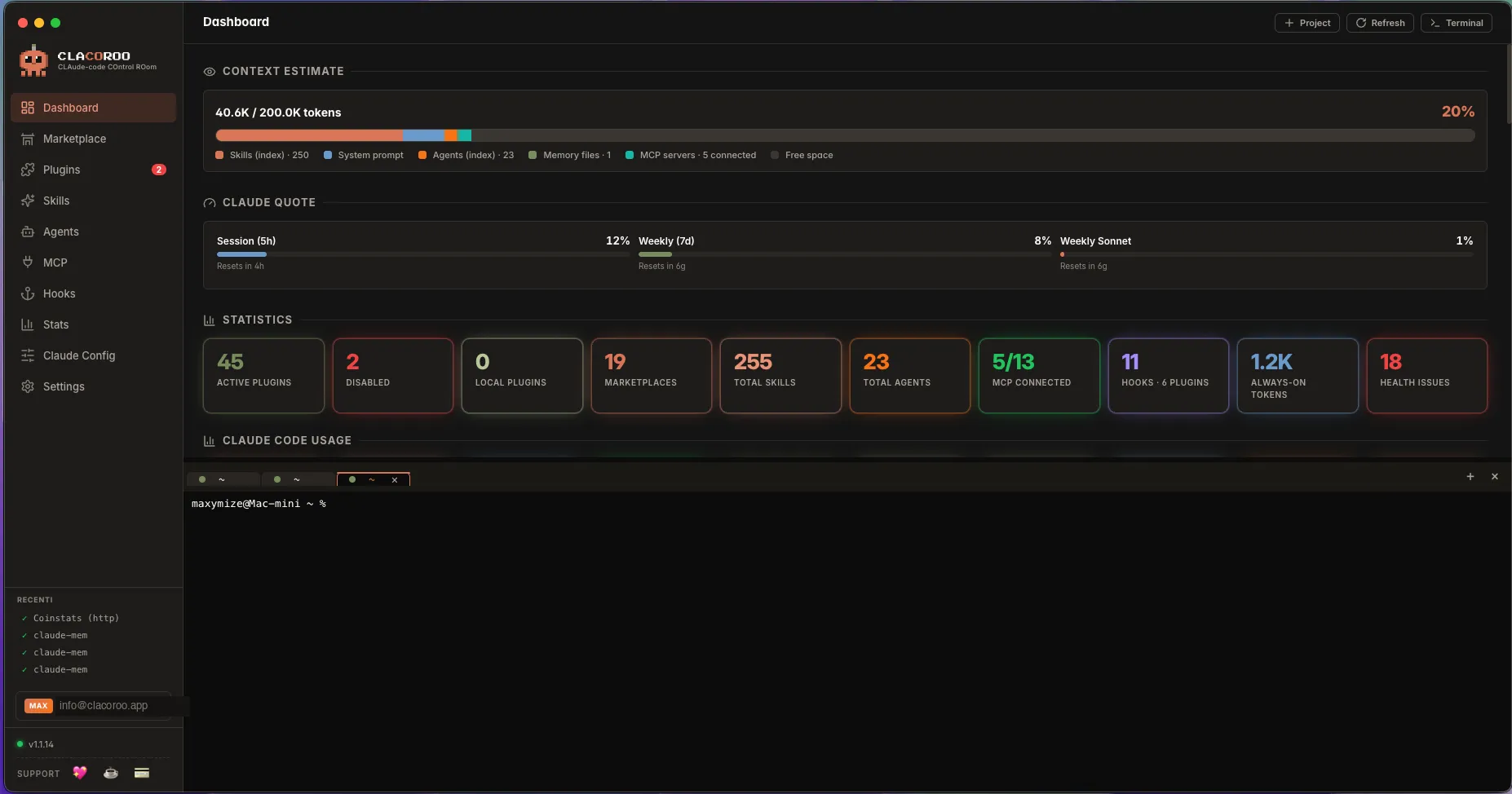
A drawer slides up from the bottom of the window. It has:
- A row of tabs at the top (with
+to open a new one and×to close) - The terminal area itself, with normal scrollback
- A resize handle between the drawer and the main content (drag to resize)
- A close button that minimizes the drawer (your sessions stay alive in the background)
The drawer is global, not section-specific — open it from any section.
What it shows
Shell
Each tab starts a fresh shell — your default login shell on macOS / Linux (/bin/zsh, /bin/bash, etc.) and ConPTY on Windows. Your prompt, your aliases, your environment variables — exactly what you’d get if you opened a regular terminal app.
Tabs
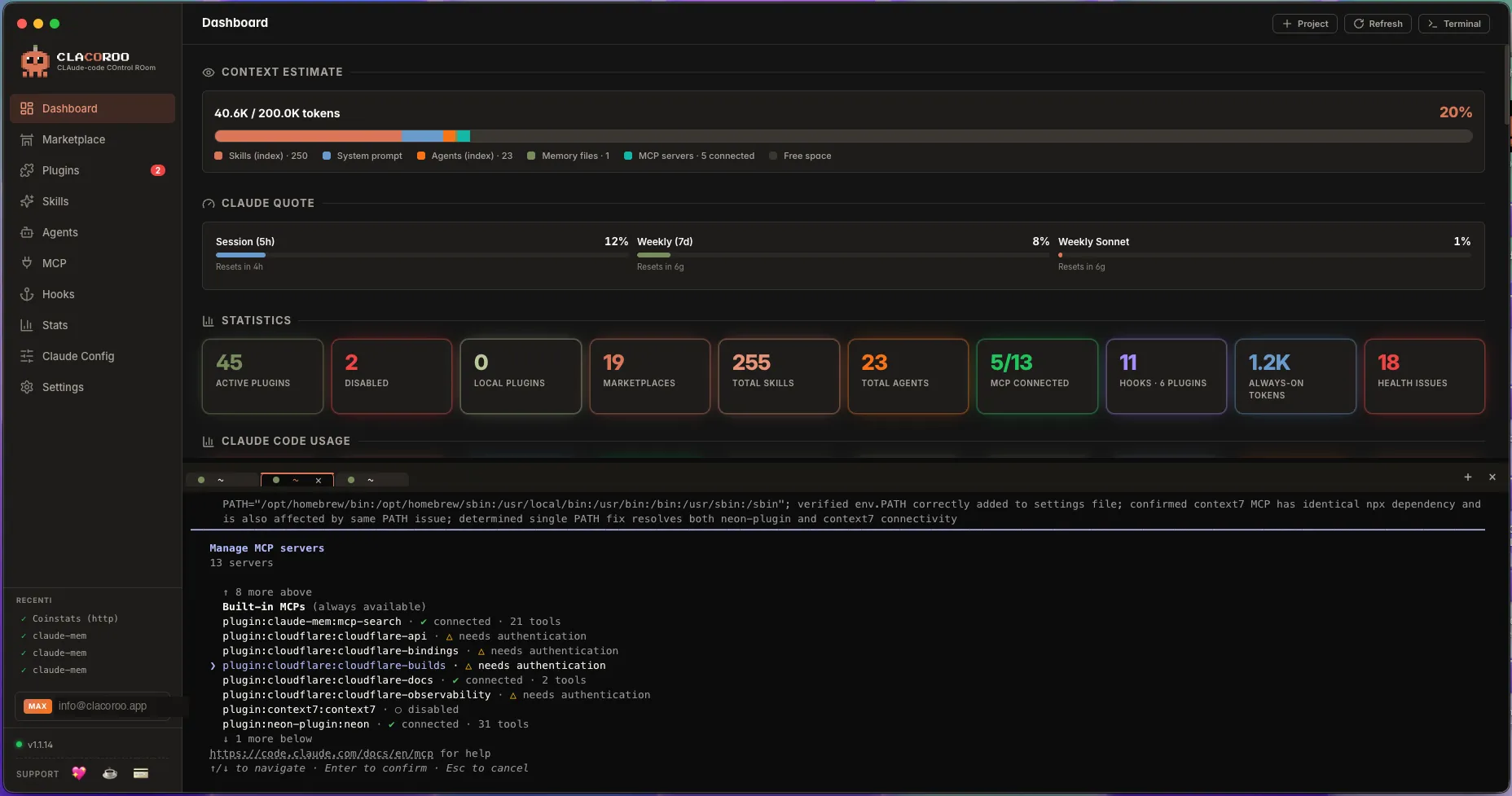
Open as many tabs as you need:
- One for an interactive flow (e.g.
claude login) - One for a long-running
claude mcp authenticate <server> - One for ad-hoc commands
Tabs survive resizing and section changes. Closing the drawer doesn’t kill tabs — your sessions stay alive until you explicitly close a tab.
Resize handle
Drag the handle between the drawer top edge and the main content to give the terminal more or less space. The size is remembered between launches.
Status badges (per tab)
Each tab title shows a small status:
- active — the shell is responsive
- busy — a long-running command is in foreground
- exited — the shell exited; close the tab or restart
Common tasks
How to open the terminal
- Click the Terminal button in the top-right of the topbar
- Or press the backtick key (Cmd / Ctrl + backtick, the key above Tab)
- The drawer slides up with the most recent tab focused (or a new one if none exist)
How to open a new tab
- Click the
+in the tabs row - Or press
Cmd / Ctrl + Twhile the drawer is focused
How to close a tab
- Click the
×on the tab - Or run
exitin the shell
How to authenticate an MCP server interactively
This is the canonical use case for the terminal:
- In the MCP servers section, click Authenticate on a “Needs Auth” card
- CLACOROO opens the terminal with
claude mcp authenticate <server>already typed and ready to run - Press Enter and follow the prompts (usually a browser opens for OAuth)
- Once the flow finishes, the MCP card updates its status on next refresh
How to log in to claude.ai
Same shape:
- Settings → Claude account → Login to claude.ai
- CLACOROO opens the terminal with
claude loginprepared - Follow the prompts; the account panel updates on completion
How to copy / paste
Selection works as usual: drag to select, then Cmd / Ctrl + C to copy. Paste with Cmd / Ctrl + V.
On Linux/Windows you can also paste with middle click if your shell supports it.
Tips & shortcuts
- The terminal is a real shell: aliases,
nvm, asdf, completion all work; nothing is sandboxed away - The backtick key (Cmd / Ctrl + backtick, the key above Tab) toggles the drawer; learn this and you’ll never reach for the topbar button
- Tabs survive closing the drawer, switching section, and resizing the window. They die only when you close them or quit CLACOROO.
- The drawer height is saved per-session: resize it to where you like it, and it’ll come back the same way next launch
- On macOS the drawer height counts as a normal element, so the main content scrolls behind it — useful when you want to keep both visible
Edge cases & errors
- Tabs say “exited” right after opening. Your default shell isn’t available or your
$SHELLis misconfigured. Set$SHELLto a valid path and reopen the tab. - The terminal doesn’t accept input. Click in the terminal area to give it focus, then try again.
- An ANSI escape leaks through (e.g.
^[[K). Some old programs assume a “dumb” terminal; force-setTERM=xterm-256colorbefore running them. - Pasting a long block trims characters. Some shells throttle paste; use bracketed paste (most shells support it by default in recent versions) or save the snippet to a file and
catit. - The shell stalls after
claude login. The OAuth callback couldn’t reach your machine. Runclaude login --headless(device-code flow) and follow the URL printed in the terminal.
Related
- MCP servers — the typical reason you open the terminal (auth flows)
- Claude account —
claude loginlives here - Claude Config — for non-interactive config inspection, use
claude config get ...in the terminal - Troubleshooting — when something else fails, the terminal is the place to diagnose