Skills
A skill is a piece of context Claude Code loads on demand — a Markdown file in a plugin that teaches the assistant how to do one specific thing (write a SQL migration, explain a flag, build a regex, …). The Skills section in CLACOROO is your catalogue of every skill Claude Code loads: the ones from installed plugins, your user skills in ~/.claude/skills and those of tracked projects, with inline preview.
A skill doesn’t turn on by itself: it belongs to its plugin and travels with it. The switch on the card acts on the plugin that provides it, so on all its skills and agents together. This is also the explorer: see what you have, learn what each skill does, and copy the trigger to use it.
Overview
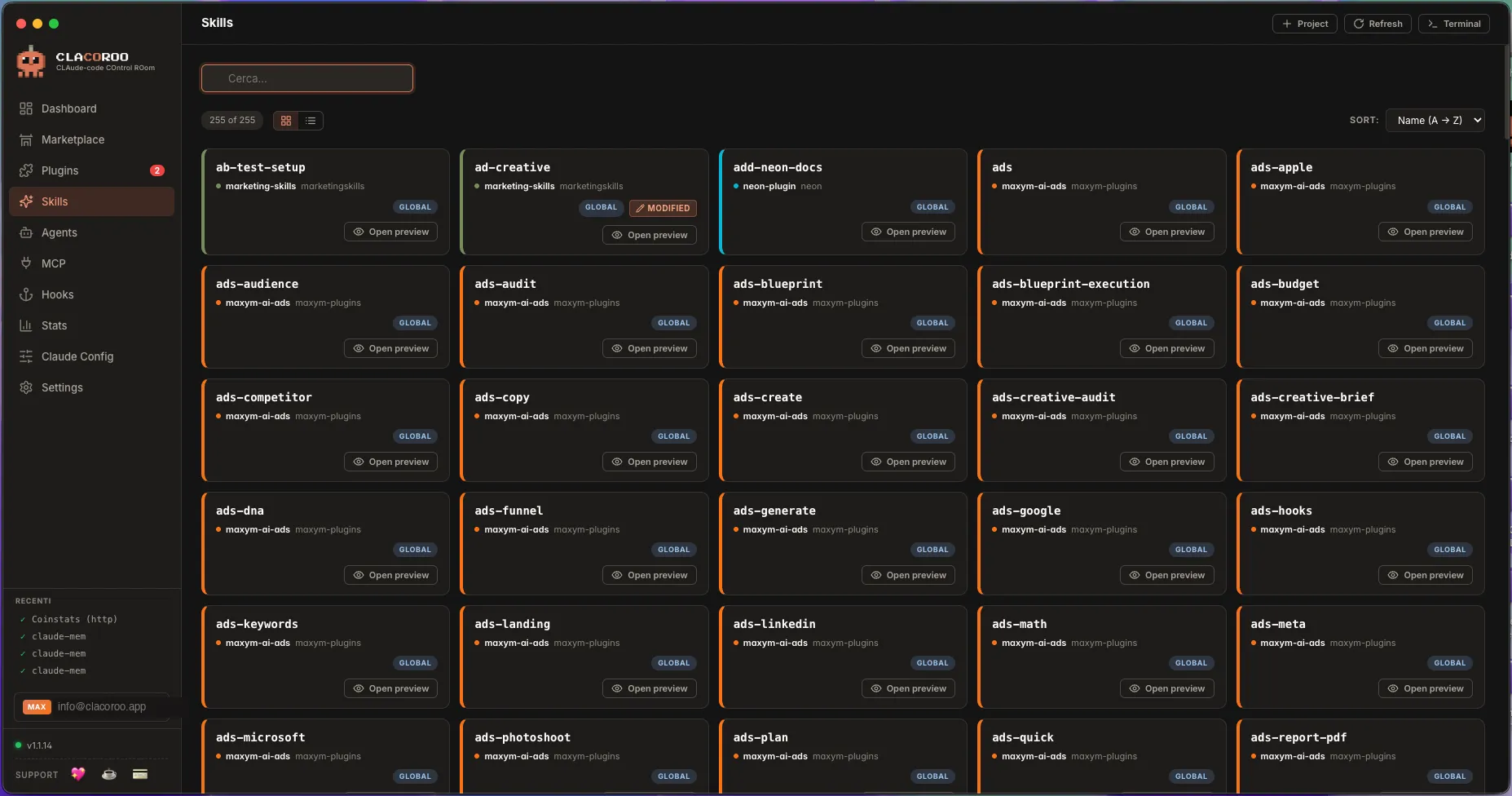
A grid of skill cards (or rows in Compact view). Each card carries the skill name, the plugin that ships it, a short description, a status dot (ok / warning / error), and the trigger pattern Claude Code recognises.
A topbar above the grid lets you filter by plugin, search by name, sort, and toggle Cards / Compact view.
Where skills come from
CLACOROO shows every skill Claude Code loads, not only the ones from plugins:
- Plugins (
GLOBALbadge): skills and commands from installed plugins, read from the version Claude Code actually uses. Plugin commands (for examplepm-product-discovery:brainstorm) carry theCOMMANDtag. - User (
USERbadge, purple border): the skills in~/.claude/skills, plus the commands in~/.claude/commands. Claude Code loads them in every session. - Project (badge with the project name): the skills in
<project>/.claude/skillsof the projects you track with Project in the top bar. They apply only when you work in that project.
If ~/.claude/skills contains a symbolic link that points to a folder that no longer exists, the card shows a BROKEN LINK badge: Claude Code ignores it, and you can delete it with Show in folder.
When you add or remove a user or project skill, the section refreshes on its own.
What it shows
Skill card
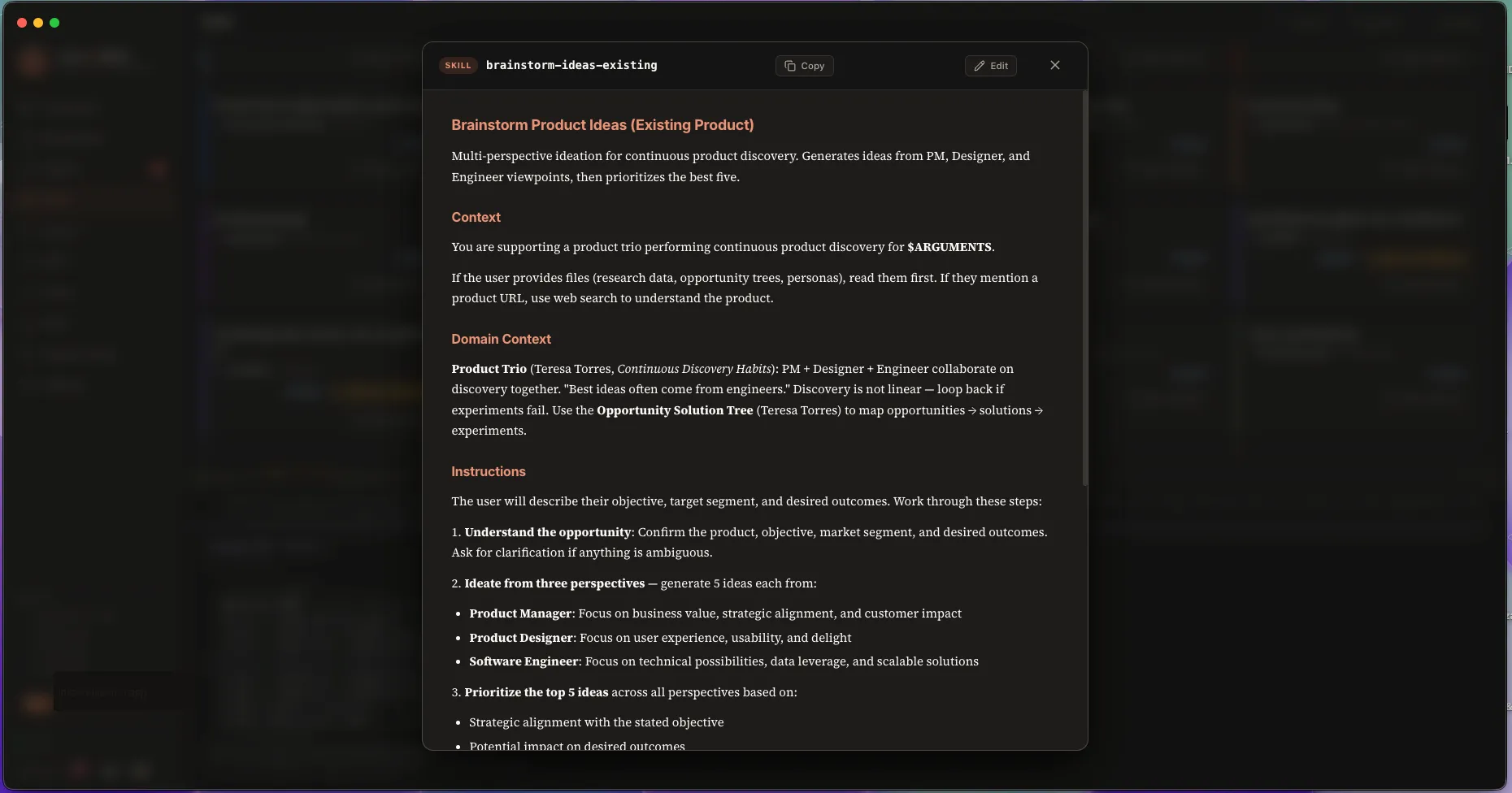
The card shows everything you need to decide whether to use the skill:
- Name — the skill identifier
- Plugin badge — which plugin bundles it
- Description — the first 1-2 sentences from the skill’s front matter
- Status dot —
ok(green),warning(yellow),error(red) - Actions — Open preview, Copy command, Open in VS Code
Skill preview (modal)
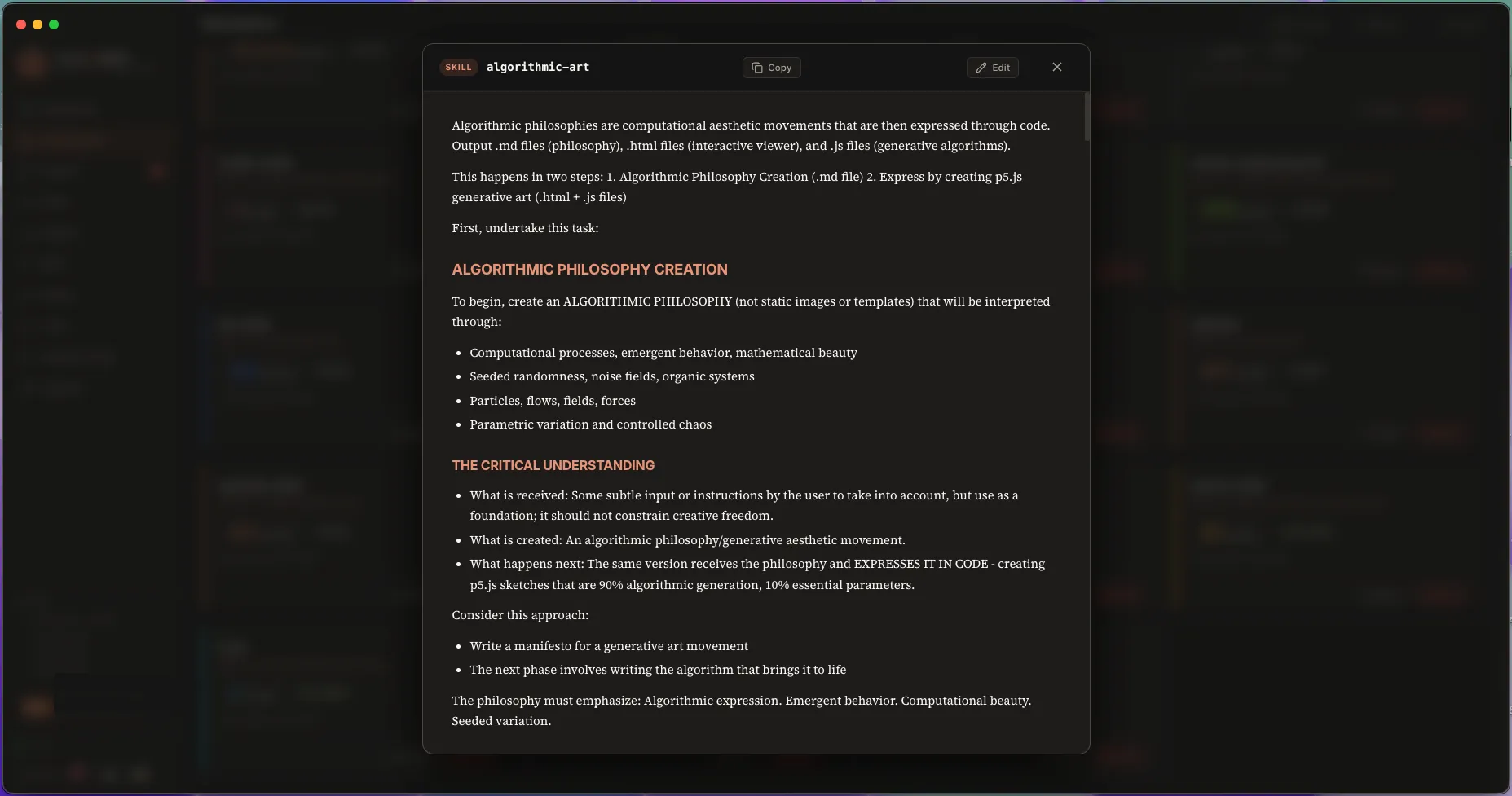
Click Open preview (or the skill title) to read the full Markdown the skill contains — the same content Claude Code will see when the skill activates. Code blocks, headings, lists are rendered properly so you can read it like documentation.
The modal is non-modal in spirit: you can scroll, copy text, and close it without losing your place in the section.
Trigger / command
Most skills declare a trigger pattern in their front matter (e.g. "when X happens", or a regex, or an explicit instruction). CLACOROO surfaces it with a Copy command button so you can:
- Paste it into your Claude Code chat to invoke the skill on purpose, or
- Use it as reference when writing prompts that should activate the skill
Filters and grouping
- Filter by plugin — keep only skills from a specific plugin
- Status (All / Active / Disabled / Warning): Disabled = its plugin is turned off; Warning = the file has a front matter problem, or it is a broken link (not for disabled plugins: Claude Code doesn’t load them); Active = Claude Code loads it (it can carry a warning too)
- Source (All / Plugins / User / Project): keeps only the skills from one source
- The chips sit below the search box, the number in brackets tells you how many skills each holds, and the two groups combine with each other and with the search
- Search — matches name and description
- Sort — name A→Z, name Z→A, plugin A→Z, plugin Z→A
In Cards view, skills are visually grouped by plugin (with a colored marker per plugin). In Compact view they’re shown as a dense list with the same grouping made explicit by a separator row.
Common tasks
How to invoke a skill from Claude Code
- Find the skill in the section, read its description in the card
- Open the preview if you want to know exactly what context it adds
- Click Copy command to grab the trigger pattern
- Paste it (or rephrase it naturally) in your Claude Code session
- The skill activates and the relevant context is added to the prompt
How to read what a skill does
Open its preview: it’s literally the skill’s Markdown file, rendered. If something looks wrong (broken code block, missing front matter), CLACOROO shows the parse error in a banner at the top of the preview.
How to turn a plugin’s skills on or off
Cards of plugin skills carry a switch labelled Plugin on or Plugin off (in Compact view it is a small switch at the end of the row). Turning it off switches the whole plugin off, so all its skills and agents, not only the one on the card: CLACOROO says so in the confirmation, with the number of skills and agents involved. It is the same claude plugins disable command as the Plugins section, and you turn it back on from the same switch. To see what is off use the Status filter, Disabled. Skills of plugins installed only inside a project have no switch.
How to delete a skill
- User and project skills, commands and broken links: the trash button on the card moves the item to the system Trash, where you can restore it. If the item is a symbolic link, only the link is moved, not the folder it points to.
- Plugin skills: they can’t be deleted one by one. To remove them, uninstall the plugin from the Plugins section, or turn it off with the switch.
The trash button is available in Card view.
How to edit a skill
Click Open in VS Code on the card. CLACOROO opens the skill’s file in VS Code so you can edit it directly. Save, and CLACOROO picks up the change on the next refresh (or immediately if the file watcher is responsive).
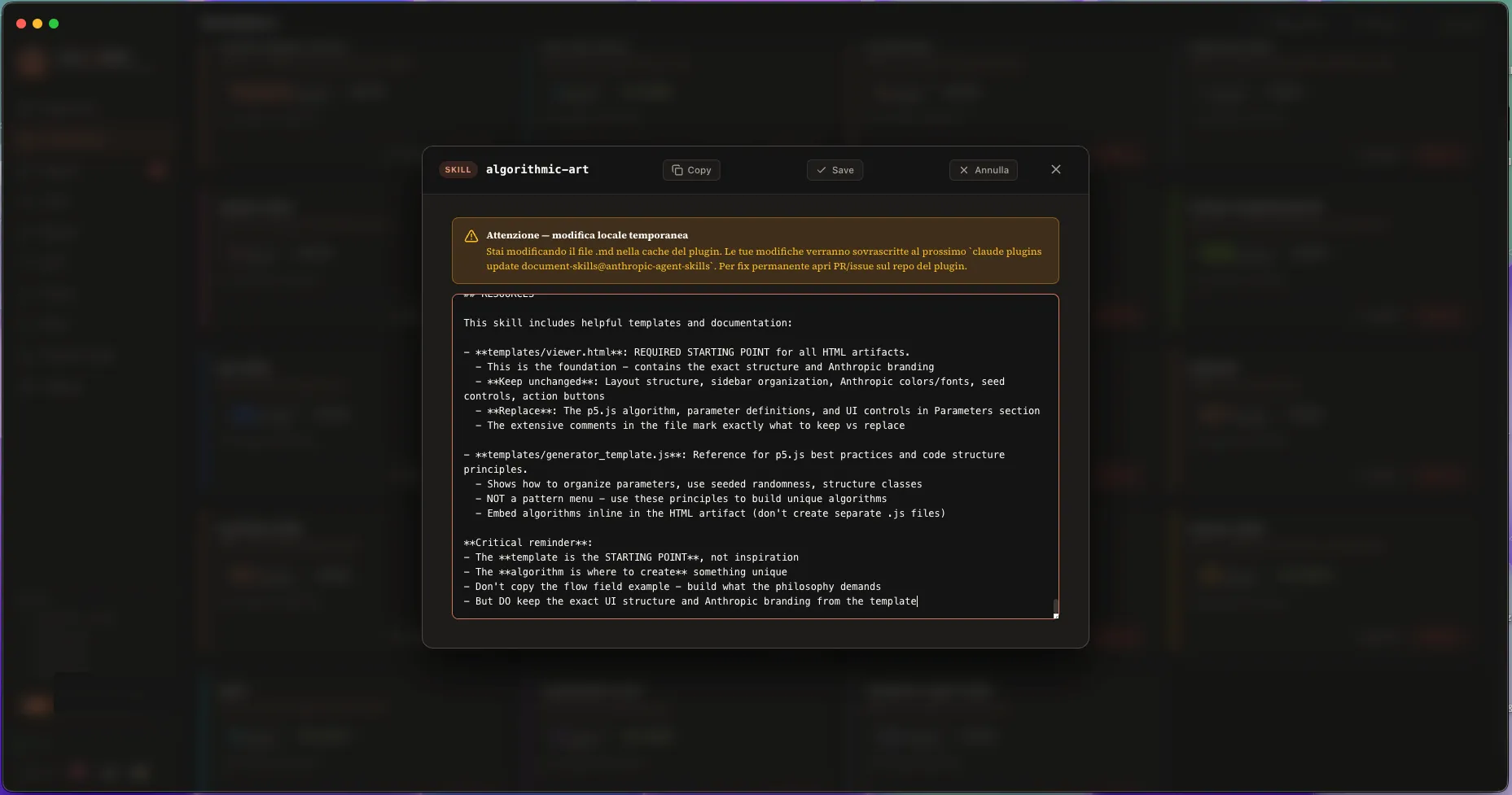
User and project skills are your own files: from Open preview click Edit, and saving writes straight to the original file, permanently.
Note. Editing a skill shipped by a marketplace plugin counts as a local modification —
claude plugins update <plugin>will overwrite it. If you want to keep changes, fork the plugin or copy the skill into a local-scope plugin.
How to find skills with errors
- Look for red status dots on cards (or red rows in Compact view)
- Open the preview — the parse error appears at the top
- Either fix the file (Open in VS Code) or report it upstream to the plugin author
Tips & shortcuts
- The grouping by plugin in Cards view tells you which plugin is contributing what — a quick way to audit what each plugin actually adds to your context
- Search is case-insensitive and matches partial words: typing
migfindsmigration,migrate,mightyindifferently - The preview modal’s first lines often contain the skill’s trigger condition in plain English — read those if the copy command isn’t obvious
- A skill with 0 description simply hasn’t filled in its front matter — open it in VS Code to add one and improve discoverability
Edge cases & errors
- No skills appear. Neither your installed plugins nor
~/.claude/skillscontain skills. Open the Plugin manager to check your plugins, or create a folder with aSKILL.mdfile in~/.claude/skills. - A skill has the
BROKEN LINKbadge. It is a symbolic link to a folder that no longer exists. Claude Code doesn’t load it: use Show in folder and delete the link. - A skill’s preview shows a parse error. Its front matter or one of its Markdown blocks is malformed. The error message points to the line.
- A copied command doesn’t activate the skill in Claude Code. Try rephrasing in natural language matching the trigger description. Some skills use semantic triggers, not exact strings.
- Skills appear duplicated. Two sources ship a skill with the same name (two plugins, or a plugin and your user folder). The plugin badge on each card tells you which is which.
Related
- Agents — the cousin of skills: agents bring tools and behavior, skills bring knowledge
- Plugin manager — the source of every skill listed here
- Concepts — the difference between skill, agent, hook, MCP server explained in plain English
- Dashboard — the Skills (index) category on the context bar adds up everything in this section