MCP servers
A Model Context Protocol (MCP) server gives Claude Code a structured channel to talk to an external tool — a database, a docs index, an API, a vector store, anything that speaks MCP. The MCP servers section in CLACOROO shows every server registered with Claude Code, their live status, lets you add new ones through a clear form, and lets you remove or re-authenticate the ones you have.
Mutations run the official claude mcp ... commands under the hood.
Overview
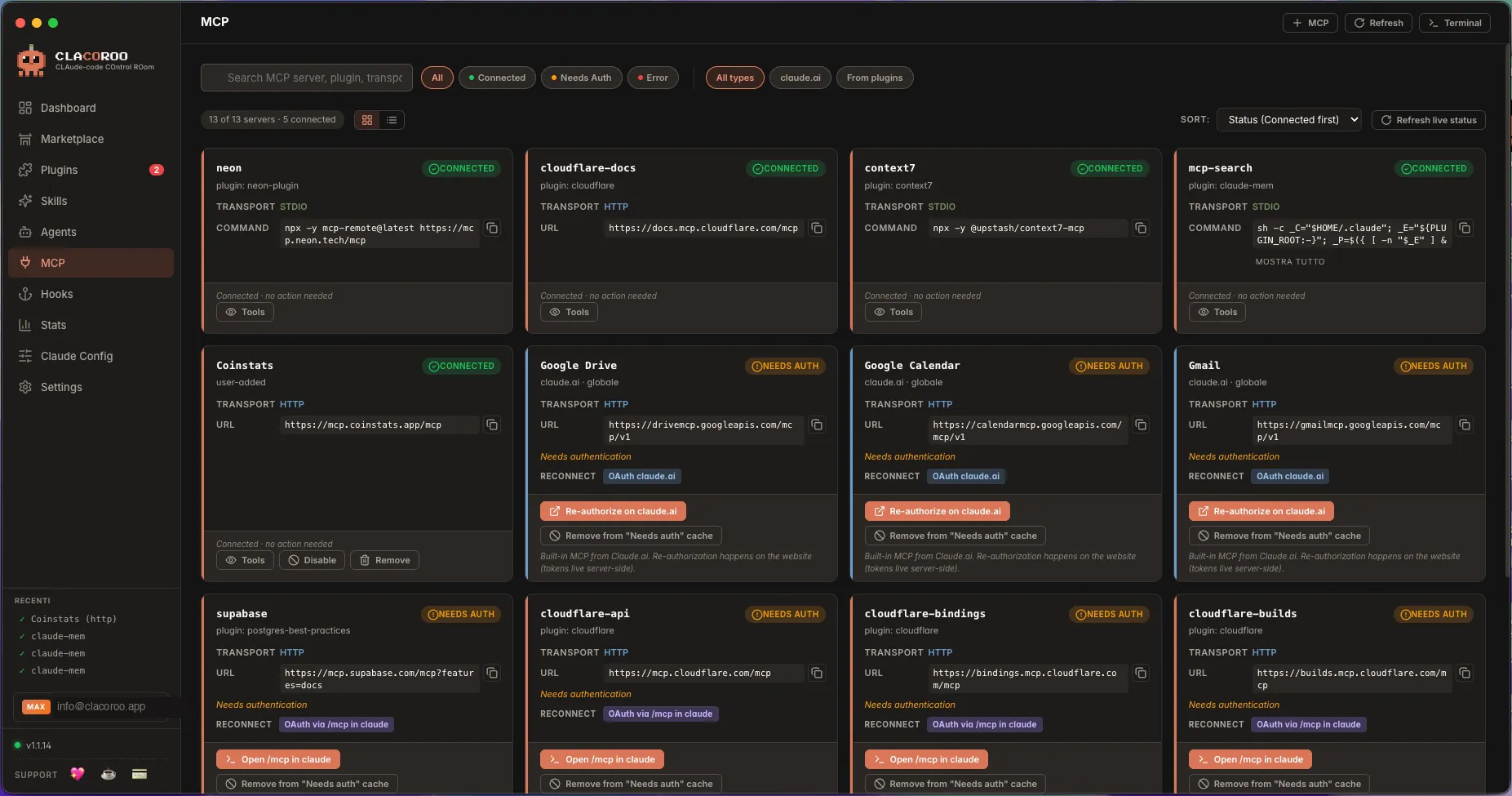
Each MCP server is a card (or row in Compact view). The card carries:
- Name of the server
- Source badge — claude.ai (built-in) · plugin · user-added
- Transport —
http,sse,stdio - Status — Connected · Needs Auth · Warning · Error · Disabled
- Description — what the server provides (when declared)
- Enable/disable toggle (servers you added only) + action buttons depending on source and status: Tools, Remove, Re-authenticate, Clear auth cache, Open settings.json
Above the cards: a topbar with + MCP to register a new server, filters, sort, search and Cards / Compact view switch.
What it shows
Status badges
Status reflects what claude mcp list reports:
| Status | Meaning |
|---|---|
| Connected | The server is reachable and responding correctly |
| Needs Auth | The server is reachable but requires you to authenticate (OAuth or similar) |
| Warning | The server responded but with non-critical issues |
| Error | The server is unreachable or returning errors. The card names the cause (see below) |
| Unknown | Project-scoped server of another folder: CLACOROO can’t probe it from its own working directory. Click Check status on the card to verify it from the project folder |
| Disabled | The server is registered but currently disabled |
The Dashboard’s MCP connected KPI counts Connected servers against the total.
Source badges
- claude.ai · global — built-in to Claude Code, you didn’t add it
- plugin:
<name>— registered by a plugin you installed - user-added — you added it yourself via the + MCP form
Only user-added servers can be removed from this UI. Plugin-provided servers come and go with their plugin; built-in servers are managed by Claude Code.
Transports
- http — request/response over HTTPS
- sse — server-sent events (streaming HTTP)
- stdio — local subprocess CLACOROO talks to over stdin/stdout
The transport determines which fields the + MCP form will ask for (URL for http/sse, command + args for stdio).
Add MCP form
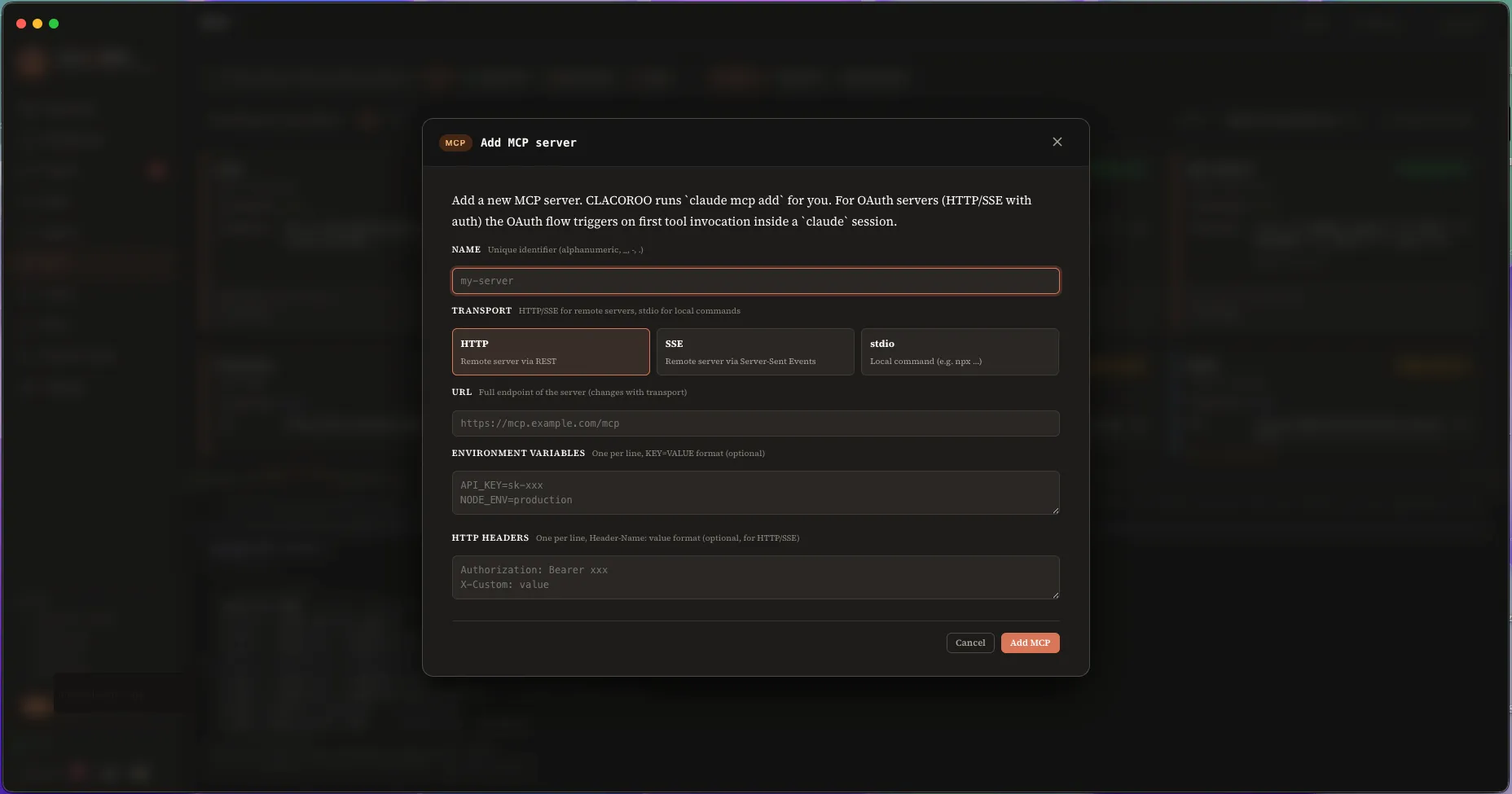
The form is split by section:
- Name — a short identifier (letters, digits, hyphens, dots)
- Transport — three radio cards; pick one
- URL (for http/sse) — full HTTPS endpoint; required
- Command + args (for stdio) — the executable and its arguments; the form lets you add args one at a time
- Environment variables —
KEY=VALUEpairs; useful for tokens - HTTP headers (for http/sse) —
Header: valuepairs; useful forAuthorization: Bearer ... - Scope — global or current project
Submit runs claude mcp add --transport <t> [-s <scope>] [-e KEY=VAL] [-H HEADER:VAL] <name> <target> [-- args]. The new server appears immediately and starts probing for its first status.
Common tasks
How to add an MCP server
- Click + MCP in the topbar
- Fill in the Name and pick a Transport
- Provide the URL (http/sse) or Command + args (stdio)
- Add env vars or headers if the server needs auth via token
- Pick scope (global usually)
- Click Add — CLACOROO runs the official
claude mcp addcommand - The new card appears with status
Connecting…then settles to one of the real statuses
How to authenticate a “Needs Auth” server
- On the card, click Open /mcp in claude (for claude.ai connectors it’s Re-authorize on claude.ai, which opens the connectors page in your browser)
- CLACOROO opens the built-in terminal, starts
claudeand types/mcpfor you; press Enter to open the menu - Pick the server and follow the prompts (often an OAuth flow that opens your browser)
- Once done, click Refresh at the top of the section; the status flips to Connected
How to fix a server in Error
The card no longer shows the auth buttons for an error: under the status it names the cause and offers Re-check, which probes the server again.
| Cause | What it means | What to do |
|---|---|---|
| Executable missing | The command of a stdio server isn’t in Claude Code’s PATH | Install it (or fix the command), then Re-check |
| Local server down | Nothing is listening on the localhost port of the URL | Start the local server, then Re-check |
| Unreachable | Network, DNS or the remote service is unavailable | Re-check later, or Open /mcp in claude to read Claude Code’s detail |
| Connection error | Anything else, with Claude Code’s message quoted | Re-check, or Open /mcp in claude |
A Warning card works the same way: cause quoted from Claude Code, plus Re-check.
How to check a project-scoped server
Servers that belong to another project folder show up as Unknown, because claude mcp list only sees them when run from that folder.
- Click Check status on the card
- CLACOROO runs
claude mcp listfrom the project folder (it can take a few seconds; stdio servers have to start) - The card gets the real status and the matching actions; the hint shows when it was verified
- The result is kept until the next check, even across refreshes. Open /mcp in claude on such a card opens the terminal in the project folder
How to remove an MCP server
- Click Remove on the card (visible only on user-added servers)
- Confirm in the dialog (it shows the exact
claude mcp removecommand that will run) - The card disappears; the Dashboard’s MCP KPI updates
How to clear an MCP auth cache
If a server is stuck in Needs Auth but you know it’s authenticated server-side:
- Click Clear auth cache on the card
- Click Refresh to re-probe
- The server should flip to Connected without re-authenticating
How to enable/disable an MCP server (toggle)
Servers you added have an enable/disable toggle on the card (same style as plugins). It’s handy to save tokens: every connected server adds its tools to Claude’s context — keep on only the ones you need.
- Disable by switching the toggle off → confirm in the dialog → CLACOROO removes the server from Claude Code (
claude mcp remove) but saves the configuration, so you don’t have to re-enter it - Re-enable by switching the toggle back on → the server is re-added with the saved config, in one click
Built-in (claude.ai) and plugin-provided servers don’t have the toggle: the former are managed on claude.ai, the latter are enabled/disabled together with the owning plugin (Plugins section).
Tips & shortcuts
- The status dot color is the fastest scan: green = good, yellow = needs auth, red = error, gray = disabled
- Hover the status to see when it was last checked, and the raw response if Claude Code recorded one
- A server with
erroris not retried automatically every render — click Re-check on the card (or Refresh at the top) to re-probe - stdio servers can be slow to first connect (the subprocess has to start) — give them a few seconds before declaring an error
- Use search to find a server by name or by part of its URL — useful when you have many
Edge cases & errors
- The server stays at “Connecting…” forever. Either the transport is wrong (you picked
httpbut the server only speaksstdio) or the endpoint is unreachable. Click the status to see Claude Code’s last error. - “Add MCP” fails with a regex error. The name field allows only letters, digits, hyphens, dots — no spaces or special characters. Rename and retry.
- Headers don’t seem to be sent. Make sure each header is in the form
Header-Name: value(one per line). The form validates this; the toast tells you which line is off. - Removing or disabling a built-in or plugin server isn’t possible. The Remove button and toggle are hidden by design for those sources. For a plugin server, disable/remove the owning plugin from the Plugins section.
- Multiple servers with the same name. Two scopes (global and project) defined the same name. Open
claude_desktop_config.jsonor the project’s MCP config to disambiguate.
Related
- Hooks — the other “extension point” Claude Code exposes
- Plugin manager — plugins can ship MCP servers; managing them there also affects this section
- Claude Config — the global
claude_desktop_config.jsoneditor - Dashboard — the MCP connected KPI summarises this section