Plugin manager
The Plugins section is where you spend the most time. It lists every plugin Claude Code knows about — installed globally, scoped to the current project, enabled, disabled — and lets you act on each one without touching JSON.
Every mutation in this section runs the official claude plugins ... command for you, so your setup stays in sync with what the CLI sees.
Overview
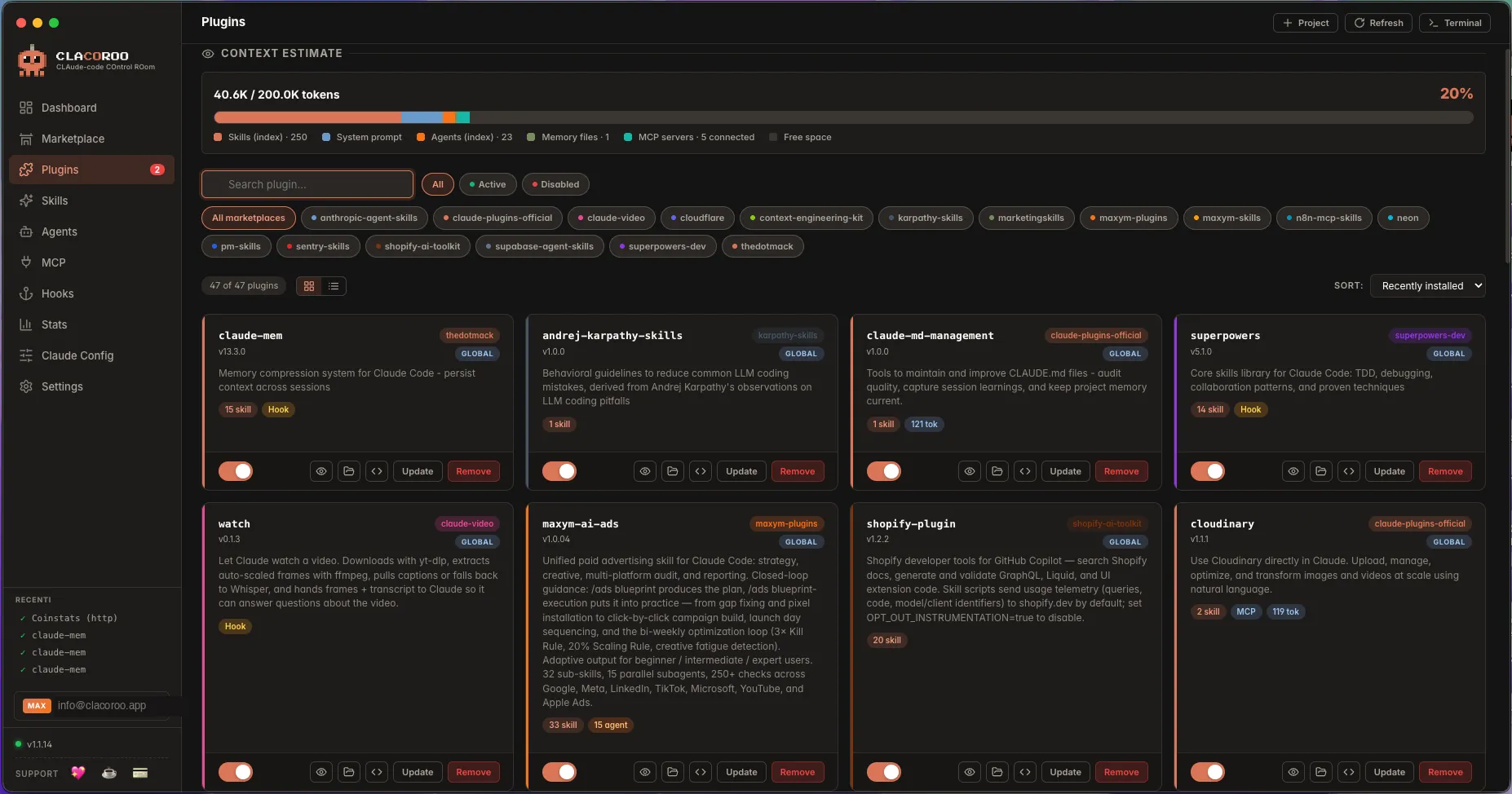
You see one card per plugin (or one row in compact view). The card shows everything you need to decide what to do with it:
- The plugin name and id (
plugin@marketplace) - A status badge (Active, Disabled, Local, Health: error/warning, Modified)
- A scope badge (global, local, project)
- Counters for what the plugin bundles: skills, agents, MCP servers, hooks
- A token cost if the plugin is always-on
- Action buttons: Disable / Enable, Update, Remove, Open in Finder, Open in VS Code
A topbar above the cards has the filters, the search box, the sort dropdown, and the view switcher (Cards · Compact).
What it shows
Status badges
Each plugin carries one or more badges:
| Badge | Meaning |
|---|---|
| active | Globally enabled and ready to use |
| disabled | Installed but turned off (still listed, just inert) |
local / local: <project> | Scoped to a specific project, not global |
| health: error | A skill or agent inside this plugin failed to parse/load |
| health: warning | A skill or agent is missing a recommended field |
| modified | The local files differ from the marketplace version (claude plugins update will overwrite them) |
The always-on tokens counter tells you how much the plugin costs your context even when you don’t invoke it.
Filters
The filter chips at the top combine in AND. Common combinations:
- All + Cards view — the default, everything visible
- Active — only enabled plugins (useful to see what’s actually in your context)
- Disabled — only the ones you’ve turned off
- Globals / Locals — global plugins or project-scoped ones
- All marketplaces / Specific marketplace — keep only plugins from a single source
Search
Type in the search box at the top to filter cards in real-time. It matches plugin names, ids, and short descriptions.
Sort
The sort dropdown offers:
- Name (A → Z / Z → A) — alphabetical
- Recently installed / Installed earliest — chronological by install date
- (Other section-specific sorts may appear on related sections)
Cards view vs Compact view
- Cards view — one box per plugin, generous spacing, great when you have a handful of plugins or want to read descriptions
- Compact view — one row per plugin, dense, perfect when you have many plugins or want to scan the list quickly
Toggle between them from the view switcher in the topbar.
Common tasks
How to enable or disable a plugin
- Find the plugin’s card (or row in Compact view)
- Click the toggle, or the Disable −N tok / Enable button
- CLACOROO runs
claude plugins enable <plugin>@<marketplace>(ordisable) - A green toast confirms the change. The always-on tokens KPI on the Dashboard updates immediately.
Tip. When you disable a plugin, CLACOROO shows you exactly how many tokens you’re recovering — it’s the difference you’ll see on the Dashboard.
How to update a plugin
- Click Update on the plugin card
- CLACOROO runs
claude plugins update <plugin>@<marketplace> - On success you see “Plugin updated” toast; new skills/agents/hooks appear automatically
If you had local modifications to the plugin files, the update overwrites them. The card shows a modified badge before the update so you can decide whether to keep or discard your changes.
How to remove a plugin
- Click Remove on the plugin card
- Confirm in the dialog (the dialog states exactly which plugin and marketplace will be touched)
- CLACOROO runs
claude plugins remove <plugin>@<marketplace> - The plugin vanishes from the list. Its skills, agents and hooks vanish from their respective sections in the same refresh.
How to install a plugin
You don’t install from the Plugin manager: installation lives in the Marketplaces section. From there, expand a marketplace card and click Install on the plugin you want. The plugin will appear in the Plugin manager once claude plugins install succeeds.
How to inspect a plugin’s contents
- Click Open in Finder (macOS) / Open in Explorer (Windows) / Open in file manager (Linux) to see the files on disk
- Click Open in VS Code to open the plugin folder in VS Code (useful for editing skills or agents)
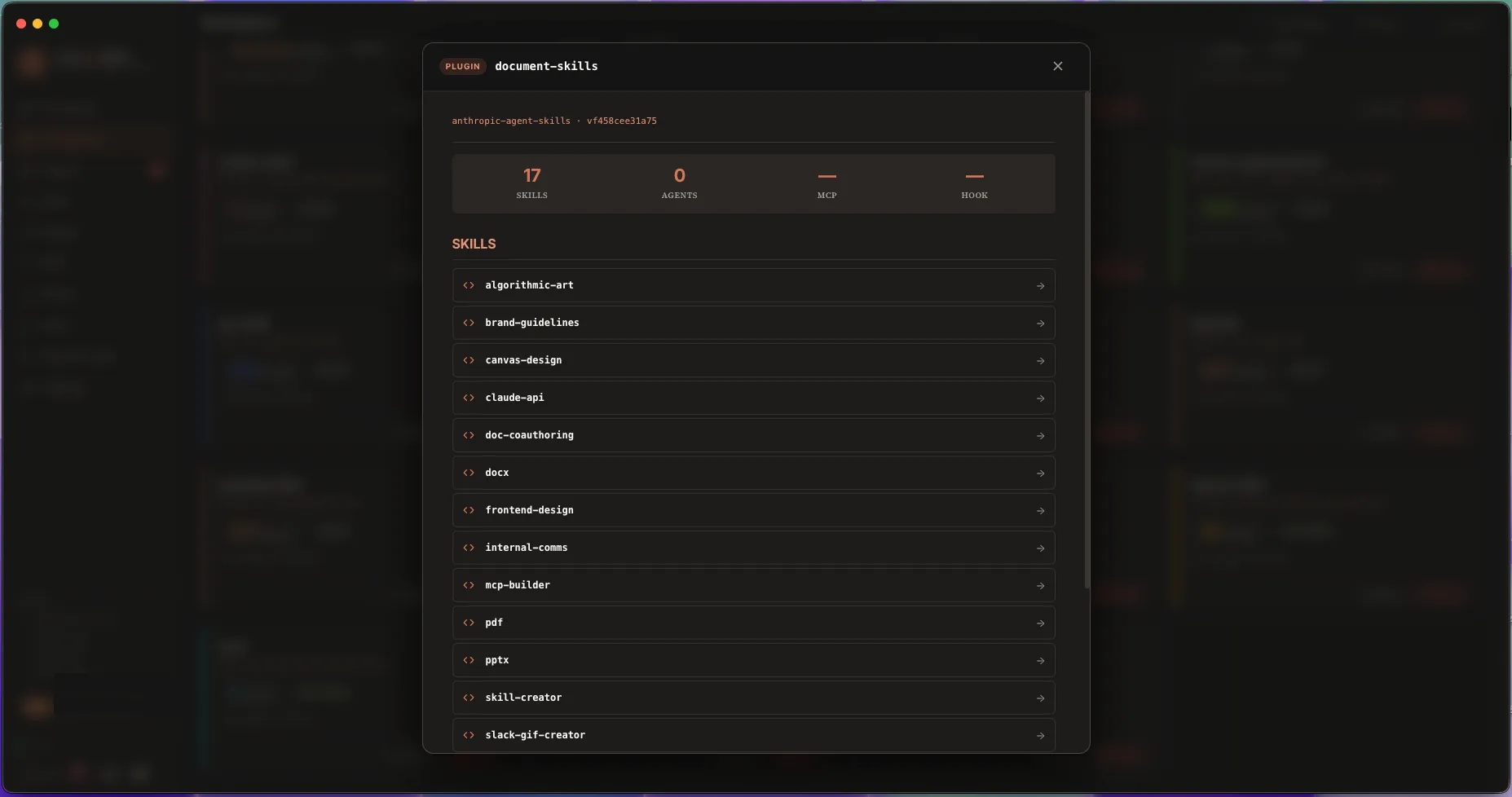
- Click the plugin’s title to open a details modal that lists every skill, agent, MCP server and hook the plugin ships, with their descriptions
How to find what’s costing the most context
- Switch to Compact view for density
- Sort by Installed earliest to see the long-time residents (often the heaviest)
- Look at the token cost column — the always-on token count per plugin
- Disable the heaviest ones you don’t need right now
Tips & shortcuts
Cmd / Ctrl + Kthen type “plugins” to jump straight to this section- Hover the counters on a card to see the breakdown (e.g. “3 skills, 1 agent, 2 hooks”)
- Hover the status badge for the full status description
- Filter chips combine in AND: e.g. Active + From Marketplace X shows only your active plugins from that marketplace
- The always-on tokens label is the most predictive of what each plugin will cost you — even before you invoke it
Edge cases & errors
- A plugin is missing after install. Click Refresh in the topbar or press
Cmd/Ctrl + R. The installation might be complete but the file watcher needed a nudge. - “Plugin update failed” toast. The marketplace might be unreachable, or there’s a version conflict. Open the built-in terminal and run
claude plugins update <plugin>@<marketplace>manually to see the full CLI error. - The plugin shows
health: error. One of its skills or agents has a broken front matter or unreadable file. Click the plugin title to open the details modal — broken items have a red dot you can click for the parse error. - Disabling a plugin doesn’t free context. Some plugins use on-invoke content that isn’t always-on; in that case there’s nothing to recover. The cost stays in
0 tok always-on. - A plugin keeps reappearing after Remove. It’s pinned by your
~/.claude/settings.jsonor by a parent CLAUDE.md. Open Claude Config to inspect and remove it from there.
Related
- Marketplaces — where plugins come from; install happens there
- Skills — the skills bundled by your plugins, with previews
- Agents — the agents bundled by your plugins
- Hooks — the hooks contributed by your plugins, grouped by event
- Dashboard — the KPI cards that summarise this section