Agents
An agent is a specialized assistant that Claude Code can hand a task to — a subagent with its own tools, system prompt and behavior, scoped to a job (code reviewer, accessibility auditor, release notes writer, …). The Agents section in CLACOROO is your catalog of every agent Claude Code loads (installed plugins, ~/.claude/agents and tracked projects), with descriptions and a copy-ready invocation command.
Agents travel with their plugin, exactly like skills. They don’t turn on one by one: the switch on the card acts on the plugin that provides them. For the rest you explore, you read what they do, you copy the command.
Overview
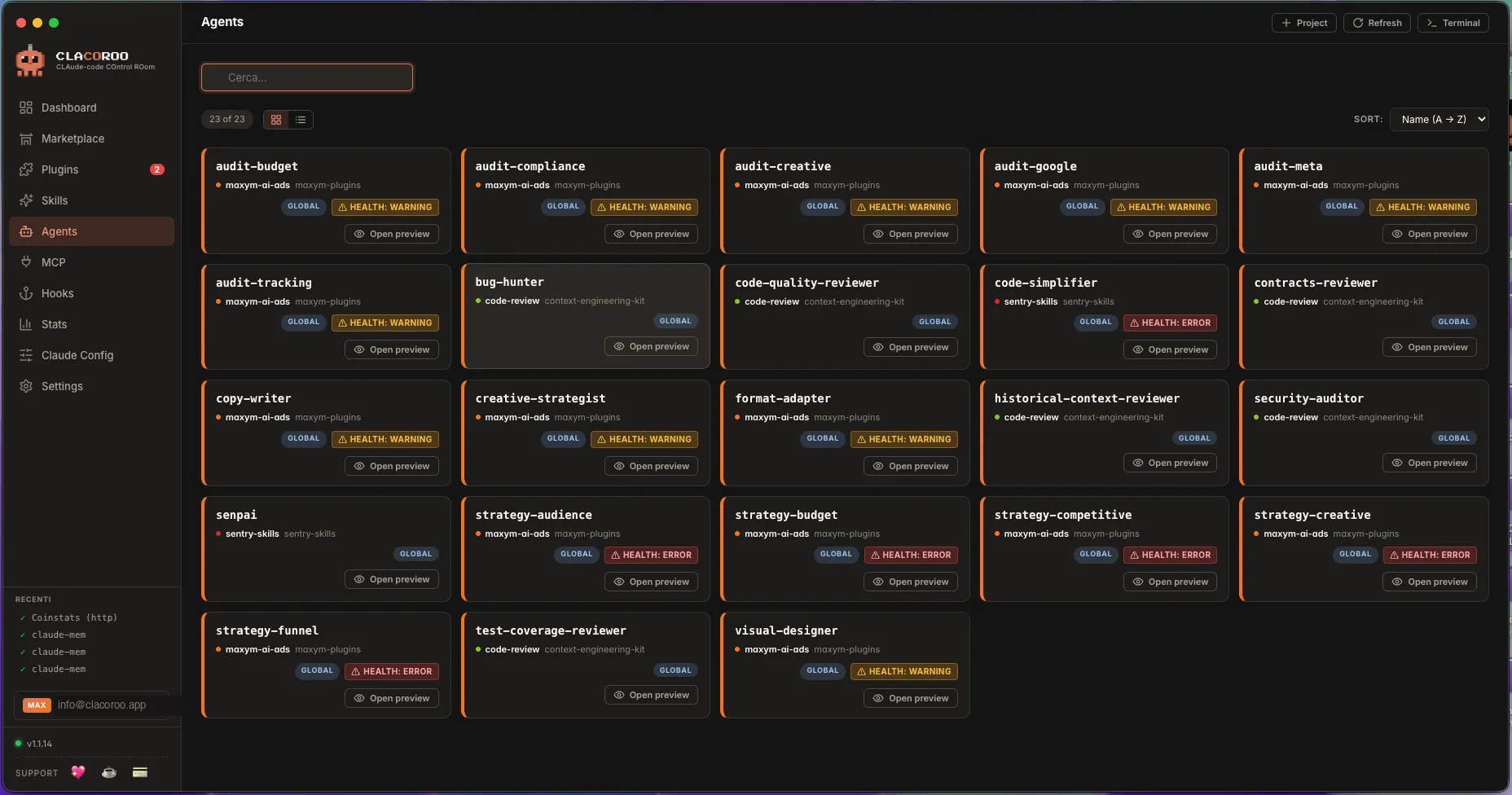
A grid of agent cards (or rows in Compact view). Each card shows the agent name, the plugin that ships it, a short description, the tools it uses, a status dot, and the command that launches it from Claude Code.
The topbar above offers filters (by plugin, by status), search, sort, and the Cards / Compact view switcher.
What it shows
Agent card
Each card carries:
- Name — the agent identifier (
/agent-nameor justagent-name) - Plugin badge — which plugin bundles it
- Description — the first sentences from the agent’s front matter
- Tools — a small badge list of the tools the agent is allowed to use (Bash, Edit, Read, …)
- Status dot — ok / warning / error
- Actions — Copy launch command, Open in VS Code
Launch command
Most agents are invoked from Claude Code with a slash command or a direct /use syntax. CLACOROO shows the exact invocation on each card with a Copy button — no need to remember the syntax.
Filters and grouping
- Filter by plugin — keep only agents from a specific plugin
- Status (All / Active / Disabled / Warning): active agents, those whose plugin is off, those with a problem in the file
- Source (All / Plugins / User / Project): separate plugin agents from your own in
~/.claude/agents(USERbadge) and from those in<project>/.claude/agentsof tracked projects - Search — matches name and description
- Sort — name A→Z, name Z→A, plugin A→Z, plugin Z→A
- Agents are grouped by plugin in Cards view (colored marker per plugin)
Common tasks
How to launch an agent
- Find the agent in the section, read its description
- Click Copy command on the card
- Paste the command in your Claude Code session
- The agent takes over the conversation (or the current task) and runs
How to know what tools an agent will use
The Tools badges on the card list the tools the agent declared in its front matter. Common ones:
- Bash — can run shell commands
- Edit — can edit files
- Read — can read files
- Write — can create new files
- WebFetch / WebSearch — can hit the web
If the badges show * the agent has wildcard access (every available tool).
How to read what an agent does
Click the agent title to open a detail modal that shows the agent’s full system prompt — the same instructions Claude Code gives the agent when launching it. Read it like documentation to understand its scope.
How to turn an agent on, off or delete it
It works like skills: the Plugin on / Plugin off switch on the card turns the whole plugin off or on again, with all its skills and agents. User and project agents have the trash button instead, which moves them to the system Trash (restorable from there). To remove a plugin’s agent, uninstall the plugin. Details on the Skills page.
How to edit an agent
Click Open in VS Code to edit the agent’s file directly. Save, and the change is picked up at the next refresh. As with skills, marketplace plugins’ agents are reset on claude plugins update <plugin>.
Tips & shortcuts
- Look at the tools badges before launching: an agent with
Bash + Edit + Writewill probably modify files; an agent withRead + WebFetchwill just gather information - Group your reading by plugin: each plugin usually ships agents that work together, sharing a domain
- The search box matches both name and description — useful when you remember the role but not the name
- A
health: erroragent has malformed front matter — open it in VS Code to fix
Edge cases & errors
- No agents appear. Neither your installed plugins nor
~/.claude/agentscontain agents. Open the Plugin manager to verify, or add a.mdfile to~/.claude/agents. - The copied command does nothing in Claude Code. Make sure the plugin that ships the agent is enabled. An agent from a disabled plugin won’t be discoverable.
- An agent shows
health: error. Its front matter has a missing field (name,description, ortools). The detail modal shows the parse error. - Two agents have the same name. Two plugins ship colliding names. The plugin badge tells them apart; in Claude Code, the most recently enabled plugin usually wins — disable one if you need to disambiguate.
Related
- Skills — the knowledge companion to agents
- Plugin manager — the source of every agent listed here
- Concepts — skill vs agent vs hook vs MCP, side by side
- Dashboard — the Agents (index) category on the context bar adds up everything in this section