Marketplaces
A marketplace is the source from which Claude Code installs plugins — typically a Git repository, but it can also be a local folder. The Marketplaces section in CLACOROO lets you add new ones, browse the plugins they bundle, install or update from them, and remove them when you’re done.
Every action runs the official claude plugins marketplace ... command under the hood.
Overview
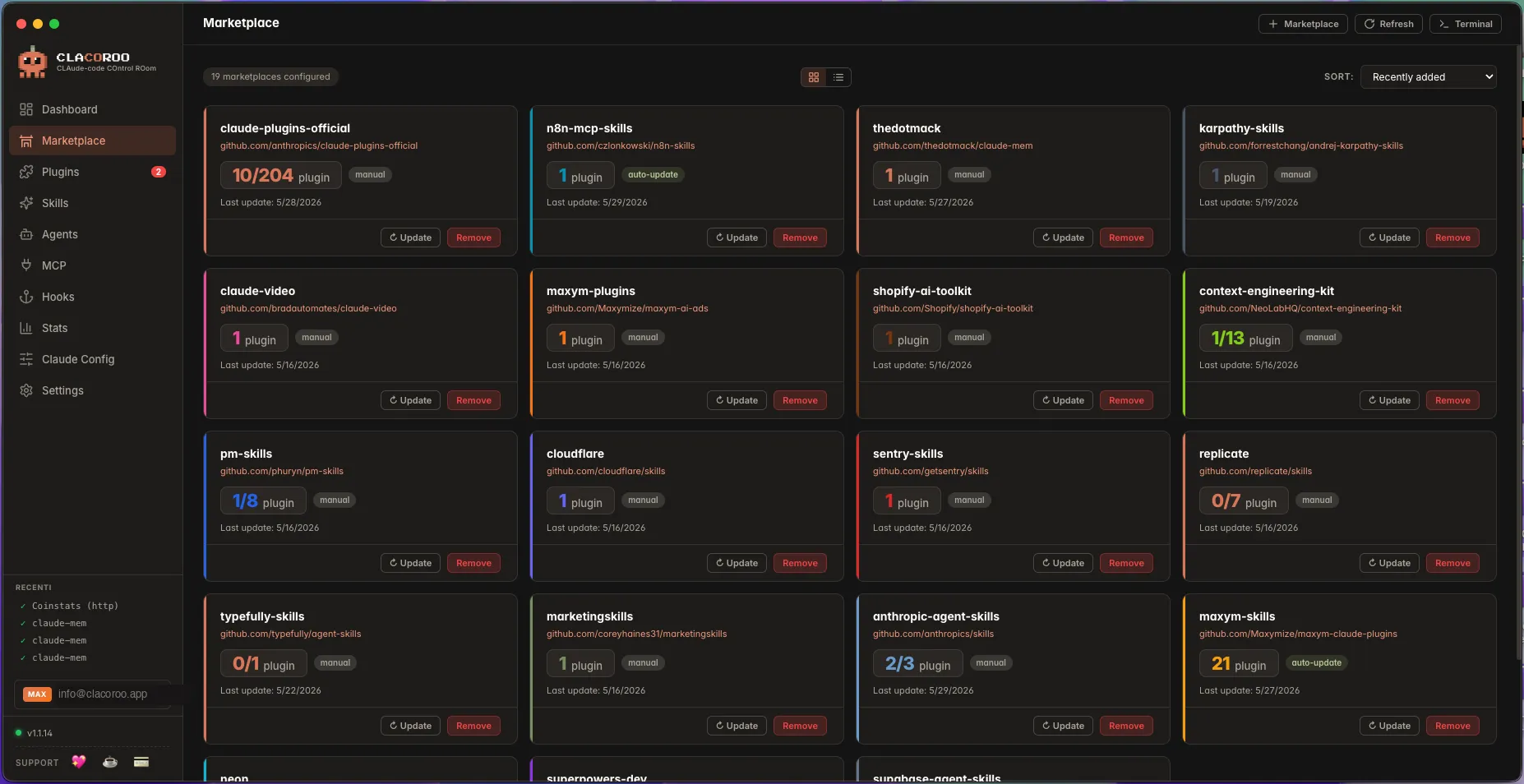
You see a card for each marketplace. The card shows the name, the repository or source, the number of plugins it offers (and how many you have installed), an optional auto-update badge, and the action buttons.
Above the grid: a topbar with + Marketplace to add a new one, a sort dropdown (most plugins first, recently added, recently updated), and the view switcher (Cards · Compact).
What it shows
Marketplace card
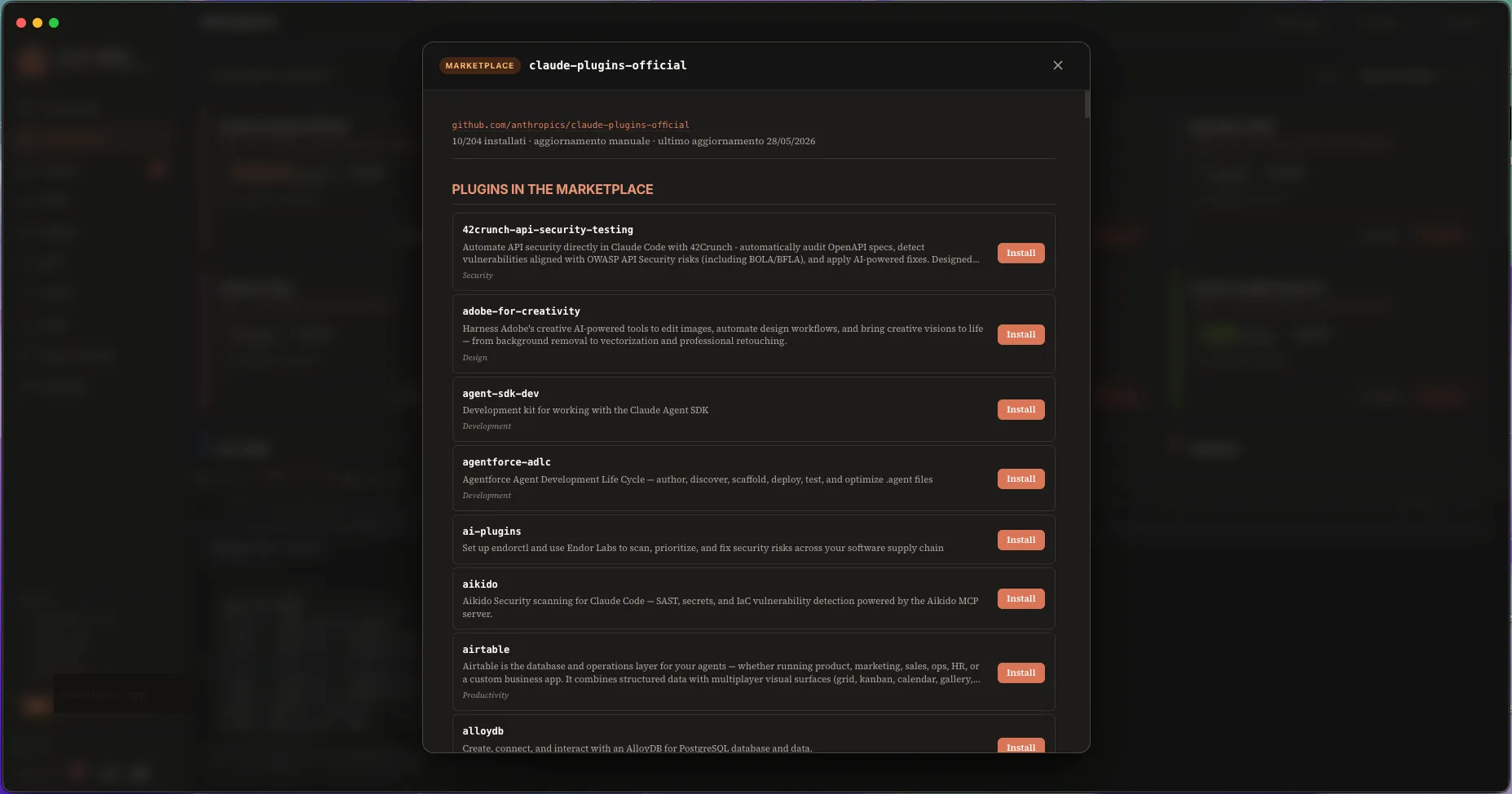
Each card carries:
- Name — the human-friendly marketplace name, as declared in its manifest
- Source — the Git URL, GitHub repo (
user/repo), or local path X installed / Y available— how many of its plugins you have installed- Auto-update badge (if any) — whether Claude Code will pull updates on its own
- Last updated — when the marketplace metadata was last refreshed
- Action buttons — Update, Remove
Click the card body to expand it: the list of every plugin the marketplace offers appears, with an Install button for each one not yet installed (and a green check for installed ones).
Marketplace detail (modal)
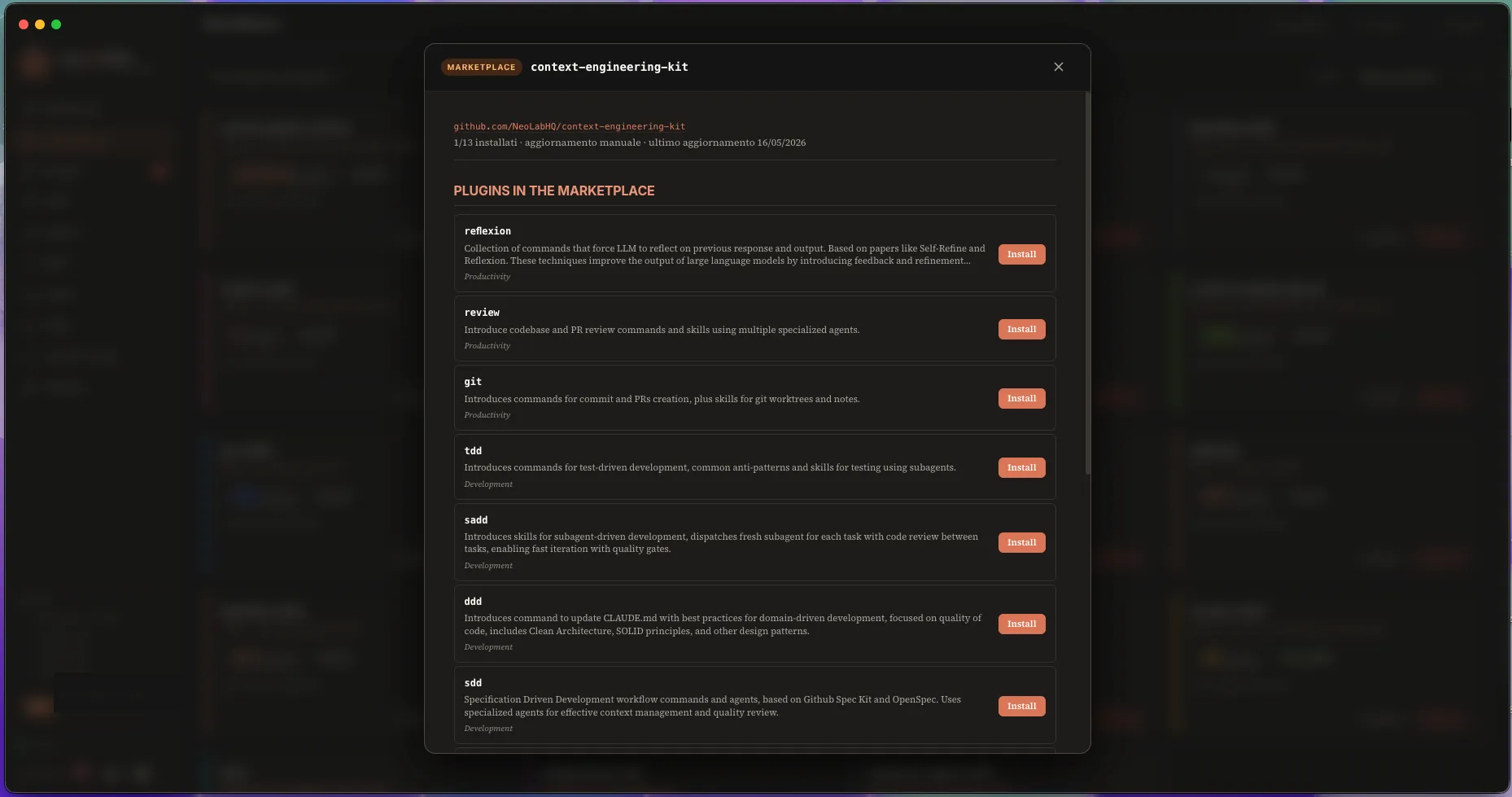
Click the marketplace title to open a detail modal that shows:
- The marketplace description
- A direct link to its repository
- The full plugin list, with each plugin’s short description and the counters of its skills, agents, MCP servers and hooks
- A copy button for the marketplace add command (handy to share)
Add marketplace dialog
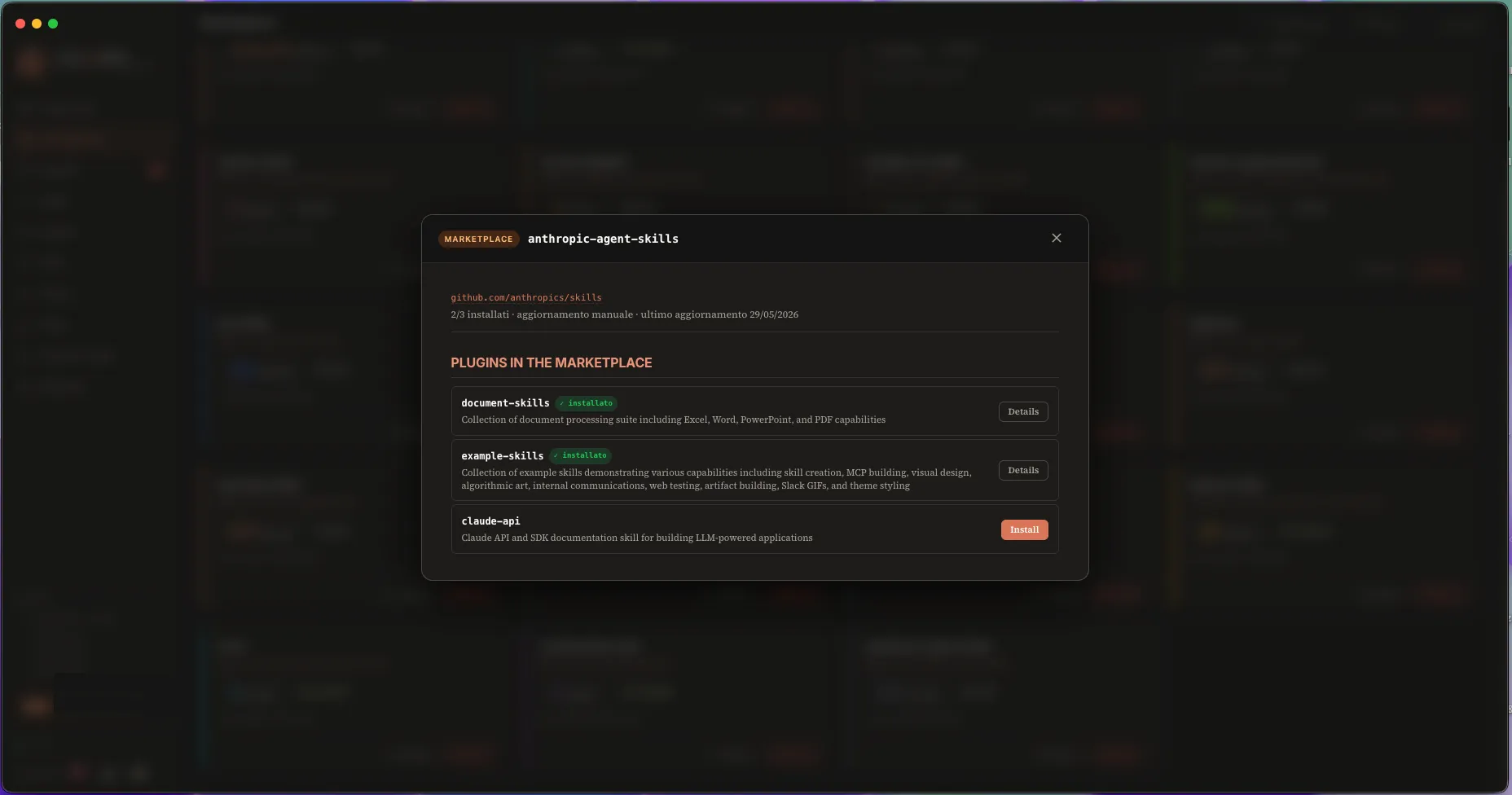
Triggered by + Marketplace in the topbar. Accepts three input formats:
- A Git URL (
https://github.com/user/repo.gitor[email protected]:user/repo.git) - A GitHub shorthand (
user/repo) - A local path (
/Users/me/my-marketplace)
You can also choose the scope (global or current project) — global is the default and what you want most of the time.
Common tasks
How to add a marketplace
- Click + Marketplace in the topbar
- Paste the source (Git URL, GitHub shorthand, or local path)
- Confirm — CLACOROO runs
claude plugins marketplace add <source> - The new marketplace card appears in the grid, already expanded so you see what it bundles
How to install a plugin from a marketplace
- Find the marketplace and click its card to expand it (or open its detail modal)
- Locate the plugin you want
- Click Install on its row
- CLACOROO runs
claude plugins install <plugin>@<marketplace> - The plugin row shows a green check; the plugin also appears in the Plugins section
How to update a marketplace
- Click Update on the marketplace card
- CLACOROO runs
claude plugins marketplace update <marketplace> - The plugin list refreshes; new plugins become available for install, removed ones disappear
How to remove a marketplace
- Click Remove on the marketplace card
- Confirm in the dialog (it reminds you that the plugins from this marketplace must be uninstalled first)
- CLACOROO runs
claude plugins marketplace remove <marketplace>once the marketplace is empty
Tip. If the marketplace still has installed plugins, the dialog gives you a quick “Uninstall all and remove” shortcut.
How to share a marketplace setup
Open the marketplace detail modal and click the copy command button — you get a claude plugins marketplace add ... line ready to paste in a colleague’s terminal or in a setup script.
Tips & shortcuts
- Sort by “Most plugins” when you have many marketplaces and want to see the richest ones first
- Recently added is useful right after you imported a snapshot (see Snapshot) — the freshly registered marketplaces are at the top
- The search box (in Compact view) matches both marketplace names and the plugins inside them
- A marketplace card with a yellow border has an update available — click Update to apply
- You can drag-and-drop a local folder onto the add dialog as a shortcut to fill the path
Edge cases & errors
- “Add marketplace” failed. Most often the URL is not reachable or the repo doesn’t contain a
marketplace.jsonmanifest. Open the built-in terminal and run the same command to see the full error. - A marketplace has 0 plugins. Either the marketplace is genuinely empty or its
marketplace.jsondeclares no plugins. Open the detail modal — if the JSON is malformed, the modal shows a parse error. - The auto-update badge is missing on a marketplace I expected to auto-update. Check the marketplace’s manifest: the auto-update flag is declared there, not in CLACOROO.
- Remove won’t fire. The marketplace still has installed plugins. Either uninstall each plugin in the Plugin manager first, or use the “Uninstall all and remove” shortcut in the confirm dialog.
- “Marketplace already exists” toast. You already added this source under a different alias. Open the existing card instead of adding a duplicate.
Related
- Plugin manager — installed plugins appear here once you install them from a marketplace
- Quick start · Add a marketplace — the short version of “how to add one”
- Snapshot — export your marketplace + plugin setup to import on another machine
- Concepts — what plugin vs marketplace really mean